Fan2Play APK: Android Safety, Verification & The Source Check
APK safety and verification on Android: how to check the file's provenance, the Android install prompt, version pinning and the warning signs of a tampered APK.

When an APK is the only path
In normal use, you install the Fan2Play app from the Google Play Store. There are two situations where an APK is the only available path: the operator has not yet published the app in your region, or your device does not support the Play Store. In either case, the APK must come from the operator's official source, not a third-party mirror. This page is a safety guide, not an installation walk-through — the right installation path is still the Play Store.
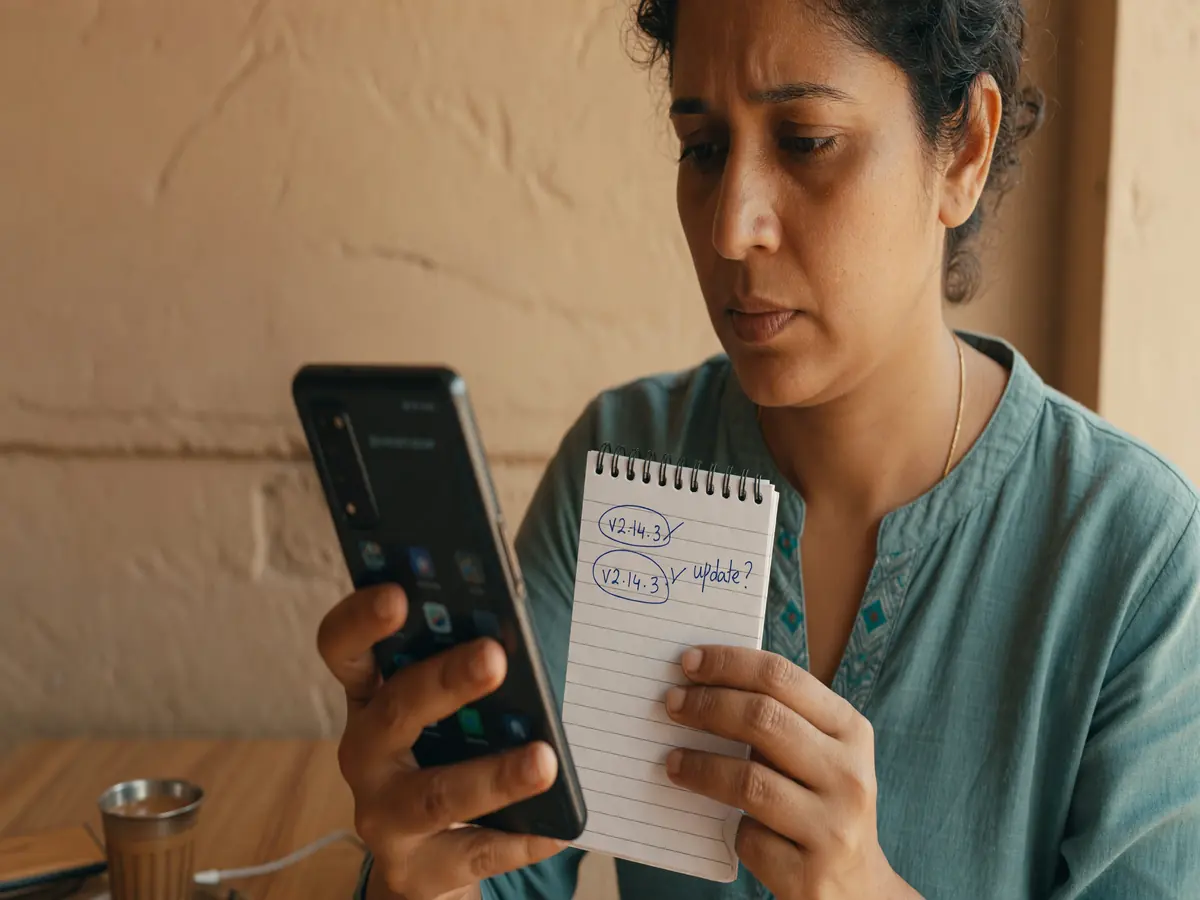
The four APK safety rules
Rule 1: only the operator's verified source
The operator's official site is the only legitimate source for an APK. The APK should be hosted on a page that is on the operator's verified domain, behind a link that is reachable from the operator's home page. If the APK is on a third-party download site, a Telegram channel, or a YouTube comment, walk away.
Rule 2: check the package name
The package name is the unique identifier of the app on Android. The operator's official package name is published on the operator's site and on the Play Store. The APK you install must match. A package name with a suffix like ".mod", ".free", ".pro", or any other variation is not the official app.
Rule 3: check the file hash
The operator publishes a SHA-256 hash of the official APK on the download page. After downloading, compute the hash of the file on your device and compare it against the published hash. If they do not match, the file has been tampered with — delete it.
Rule 4: check the signature
Android APKs are signed by the developer. The signature must be from the operator's official signing key. You can verify the signature in the Android settings under "App info" or using a tool like "APK Signature Verify". A mismatched signature is a deal-breaker.
The Android install prompt
When you tap "Install" on an APK that was not downloaded from the Play Store, Android shows a prompt listing the permissions the app is asking for. The prompt is the user's last line of defence: read the permissions carefully, and walk away if anything is unexpected. The official app will ask for: storage, network, and the KYC-time camera. It will not ask for: contacts, microphone, location, call logs, or device administrator.

Android install settings
To install an APK from outside the Play Store, Android requires you to enable "Install unknown apps" for the app you are downloading from (usually the browser or the file manager). This is a per-app setting; it does not apply globally. After the install, the setting should be turned off again — most modern Android versions do this automatically, but verify in the security settings.
If the operator's site offers an "Add to Home Screen" or "Install App" button, that is the safer path. The button is a PWA (Progressive Web App), not an APK; it installs a shortcut to the operator's web app, which behaves like a native app but is served over HTTPS. PWAs are not a full replacement for the native app, but they are safer than an APK from an unknown source.
Version pinning and the update routine
If you install an APK directly, you will not receive automatic updates. The operator's app updates through the Play Store will not apply to the side-loaded APK. You must download the new APK manually, verify the hash, and install it over the existing app. The Android installer will preserve your data and settings; it will not require a fresh KYC unless the operator publishes a major version that breaks compatibility.
Set a calendar reminder to check for updates monthly. The operator's official site and the operator's verified social channels publish update notes. If the update includes a security fix, install it as soon as possible.

Warning signs of a tampered APK
- The APK is hosted on a third-party download site, a Telegram channel, or a YouTube comment.
- The package name has a suffix or a different name from the official app.
- The hash does not match the operator's published hash.
- The signature is from an unknown developer.
- The install prompt asks for permissions the official app does not need (contacts, microphone, location, SMS).
- The app is suspiciously small (under 5 MB) — the official app is over 20 MB.
- The app installs without an "Install unknown apps" prompt, which means it is signed with the device's system key (a system-app-level attack).
What to do if you already installed a tampered APK
- Uninstall the app immediately.
- Change the password on the operator's account and on any account that uses the same password.
- Check your bank and UPI statements for any unexpected transactions. If you see any, contact your bank and the operator's customer care.
- Run a malware scan on the device (Google Play Protect, Malwarebytes, or your device's built-in scanner).
- Consider a factory reset if the malware scan flags persistent issues.
Where to read next
The app guide is the long-form read. The download guide is the install walk-through. The responsible play page covers the deposit and time guardrails.
Warning
If the Play Store does not have the app in your region, the safer path is the web login or to wait for the operator to publish the app. A side-loaded APK is the riskiest install path; treat it with the same caution as a wire transfer to an unknown account.
Can I install the APK on a work profile?
No. Most corporate devices block the installation of apps from outside the managed app store. Use the work profile only for the apps your IT team has approved.
How do I compute a file hash on Android?
Use a file manager with hash support (such as Solid Explorer), or use a free hash utility. SHA-256 is the recommended hash algorithm.
What if the operator does not publish a hash?
Walk away. The hash is the operator's proof that the APK has not been tampered with. If the operator does not publish one, you have no way to verify the file.