Fan2Play Download: The Official App, Step by Step
A deliberate, verified download of the Fan2Play app: source checks, install permissions, post-install setup and the safer path on Android and iOS.
Why a deliberate download matters
The Fan2Play app is the official channel for deposits, contests and withdrawals. A fake or tampered app can read your messages, scrape your contacts, and route your payment to a fraudster. The single most expensive mistake you can make in fantasy is installing the wrong app. The download walk-through below is written for a first-time install, with the assumption that you have not yet completed KYC.
Before you download
Have these three things ready: a phone with a working SMS plan, a clear photograph of a government-issued ID, and a working payment method. The SMS is for OTP verification during install. The ID is for the KYC step, which is mandatory before your first deposit. The payment method is for the first deposit — UPI, netbanking, or a debit card. Have all three ready, so the install does not stall halfway through.
Step-by-step: Android
- Open the Google Play Store on your phone.
- Search for "Fan2Play" using the official brand name. Do not click on ads in the search results — go to the listing that matches the operator's official brand name and package name.
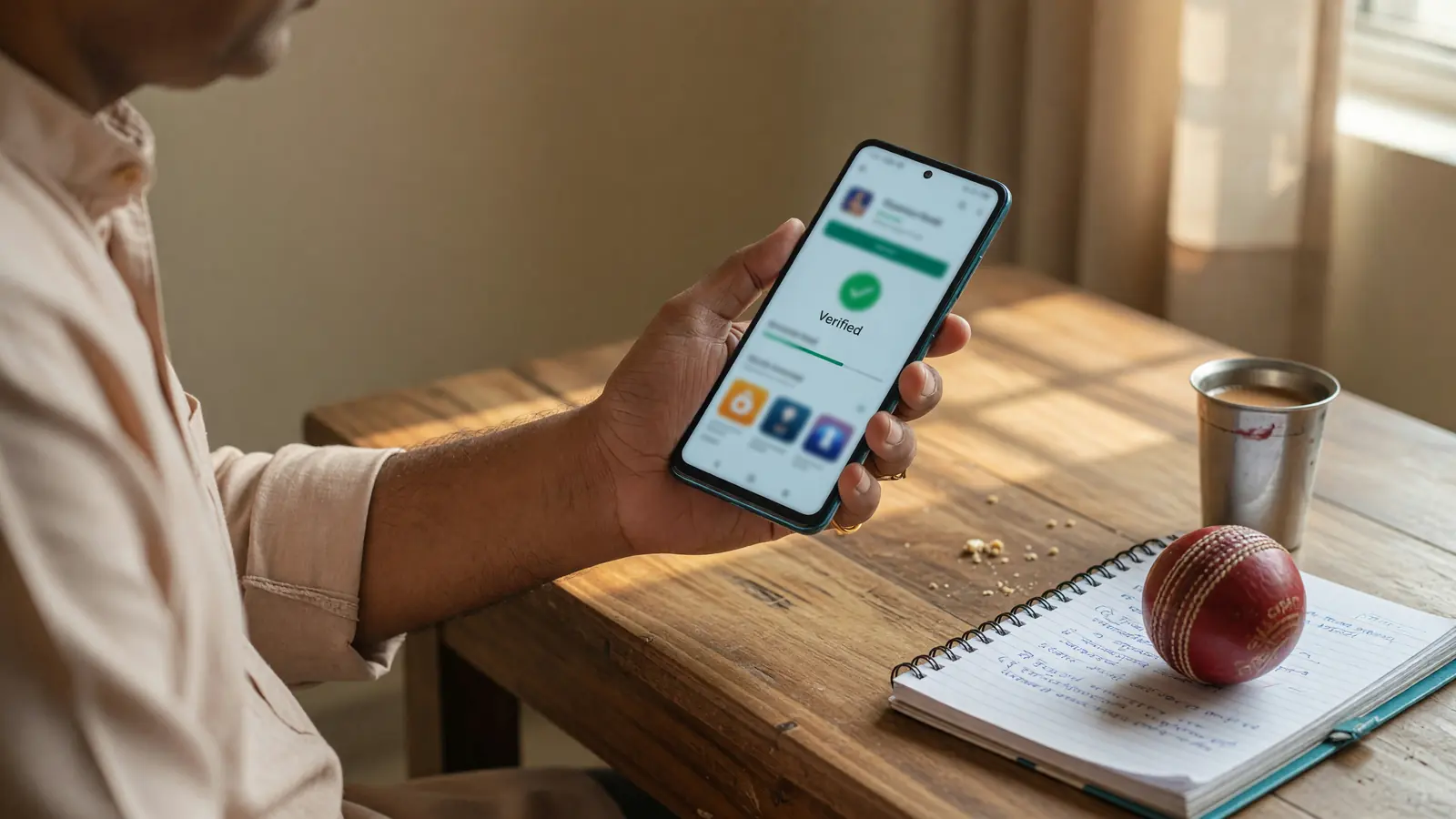
- Tap "Install". The download starts; the size is small (under 50 MB) and the install should complete in under a minute on a modern phone.
- Open the app. The first-launch flow is phone-number verification, password setup, and KYC.
- Verify your phone number via OTP. The OTP comes from the operator's official short code, not a personal number.
- Set a strong, unique password. Store it in a password manager.
- Complete KYC: PAN, Aadhaar (if required), and a selfie. The KYC step is mandatory before the first deposit.
- Add a payment method: UPI, netbanking, or a debit card. The app will not store full card numbers; it will route the payment through the operator's PCI-compliant payment partner.
Step-by-step: iOS
- Open the Apple App Store on your iPhone.
- Search for "Fan2Play" using the official brand name.
- Tap "Get". The download starts; the size is small and the install should complete in under a minute.
- Open the app and follow the first-launch flow as above.

Permissions to expect and to decline
During install, the app may prompt for optional permissions. The full list is in the app guide; the short version is: accept storage, network, and the KYC-time camera. Decline SMS, contacts, microphone, and location. The app works without any of them.
After install: the first-launch checklist
- Verify the package name on Android: Settings → Apps → Fan2Play → App info. The package name must match the operator's official name.
- Turn off promotional notifications: Settings → Notifications → toggle off "Promotions" and "Offers". Keep "Contests" and "Toss" on.
- Enable biometric login (optional): if your phone has a fingerprint or face reader, enable it. It is faster than typing the password and the security is the same.
- Set a deposit limit: most operators expose a weekly deposit cap in the wallet section. Set one before your first deposit.
If the install fails
If the install fails or stalls, the most common cause is insufficient storage. Free up 200 MB and retry. If the install completes but the app does not open, the most common cause is an outdated OS — the app requires Android 8.0 or iOS 14 or later. If the app opens but the phone-number verification fails, the most common cause is an SMS block by your carrier; switch to a manual OTP entry.
What to do if you cannot find the app on the store
The app may be temporarily unavailable in your region or on your device's store. Do not download an APK from a third-party source. Instead, use the web login for account access and check the operator's customer care page for the latest status. The web path is not a full replacement for the app, but it is the safe path until the operator restores app availability.
Where to read next
The app guide is the long-form read. The APK guide is the Android-specific safety read. The login help covers account access. The responsible play page covers the deposit and time guardrails.
Warning
If the operator's app is not on your store, do not install a third-party APK. Walk away. The safer path is the web login or to wait for the operator to restore app availability.
How long does the install take?
Under one minute on a modern phone. If it stalls, free up 200 MB of storage and retry.
Can I install on a tablet?
Yes, the app runs on Android tablets and iPads. The interface is the same; the captain pick screen may be a different layout.
What is the minimum OS?
Android 8.0 or iOS 14. The app will not install on older devices.