Fan2Play Login: Account Access, OTP Safety & Recovery
A safe-account guide to the Fan2Play login flow: device checks, OTP privacy, password reset and the verified customer-care escalation path.
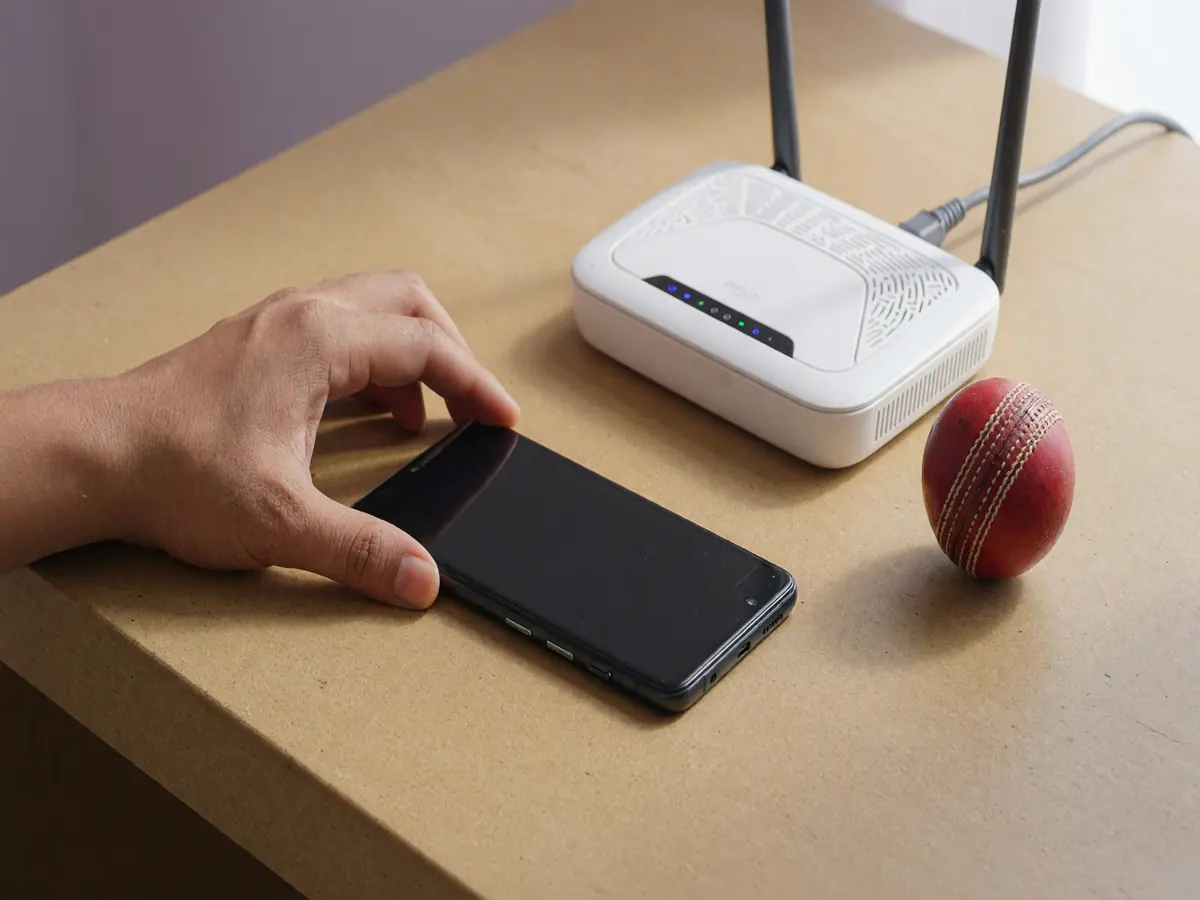
The safe-account login flow
The Fan2Play login flow is two steps: enter your phone number or username, and verify with an OTP (one-time password) sent by SMS. The OTP is valid for a few minutes and can be used once. Once verified, you are logged in for a fixed session window — usually 30 days on the same device, or until you log out. The flow is straightforward, but the safety rules are not: the OTP is the only thing standing between your account and a fraudster, and the operator's support team will never ask you to read it out.

Step 1: device and network check
Before you enter your phone number, do three things.
- Confirm the device is yours. A login from someone else's device should be a deliberate exception, not a habit. If you are on a shared or work device, do not log in.
- Confirm the network is private. Public Wi-Fi is a fraud risk for any account access. Use your mobile data or your home Wi-Fi. If you must use a public network, use a reputable VPN.
- Confirm the operator's domain. Check the URL bar: the official site is the operator's verified domain. A login page on a look-alike domain is a phishing attempt.
Step 2: the OTP
Enter your phone number; the operator will send an OTP to that number. The OTP arrives in an SMS from the operator's verified short code, not from a personal number. Type the OTP into the app or the login page. The OTP expires in a few minutes; if you do not receive it, request a new one.
Never share the OTP with anyone — not with customer care, not with a friend, not with a "support agent" who calls you. The OTP is the credential. The operator's support team will never ask for it; they have other ways to verify your identity.
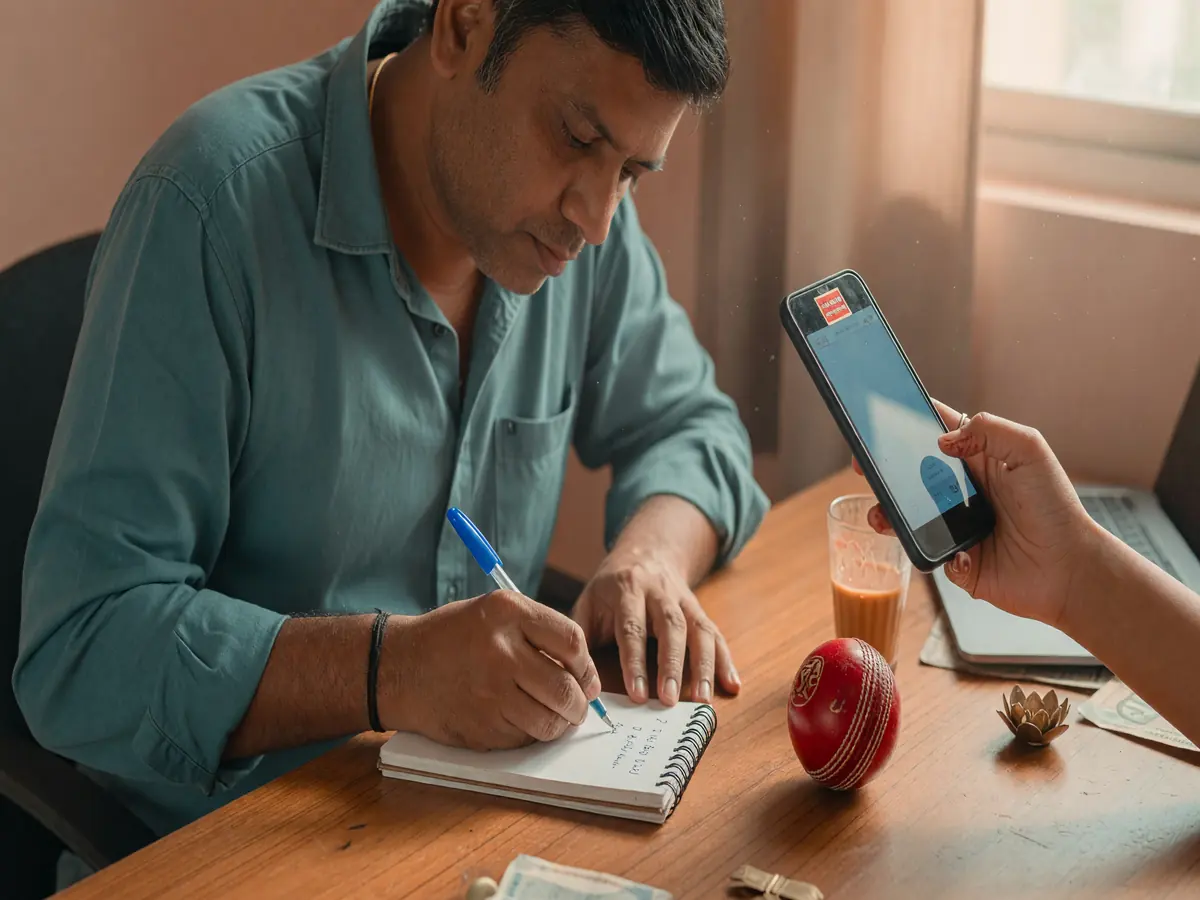
Step 3: the session
Once logged in, the session is valid for a fixed window. Most operators keep you logged in for 30 days on the same device, or until you log out. The session is tied to the device — logging in on a new device requires a fresh OTP. If you see a login notification for a device you do not recognise, change your password immediately and contact customer care.
Password reset
If you forget your password, use the operator's "Forgot password" flow. The flow is: enter your phone number or username, receive an OTP, set a new password. The new password should be unique — do not reuse a password from another account. A password manager is the easiest way to keep track of unique passwords.
Account recovery
If you cannot reset your password (for example, if the registered phone number is no longer in your possession), you will need to contact customer care with proof of identity. The proof is usually: a government-issued ID matching the account name, a recent deposit receipt matching the account, and a written statement of the issue. The recovery process can take a few business days; the operator's policy is to balance security against speed.

If you cannot log in
The most common reasons for a failed login are: a typo in the phone number, an expired OTP, an outdated app, a network issue, or an account lock after too many failed attempts. Walk through the steps in order before contacting customer care:
- Confirm the phone number is correct. The country code is +91 for Indian numbers.
- Request a new OTP if the first one expired.
- Update the app if it is more than 30 days old.
- Switch from Wi-Fi to mobile data, or vice versa, to rule out a network block.
- Wait 15 minutes if the account is locked after multiple failed attempts, then retry.
Where to read next
The app guide is the install walk-through. The customer care page is the escalation path. The responsible play page covers the safety guardrails around the account.
Warning
If anyone — even a person who claims to be from the operator's support team — asks you to read out your OTP, decline and hang up. The operator's team will never ask for it. Report the incident to the operator's verified customer care channel.
What if I no longer have the registered phone number?
Contact customer care with proof of identity. The process takes a few business days; the operator's policy is to balance security against speed.
What if my account is locked after too many failed attempts?
Wait 15 minutes and retry. If the lock persists, contact customer care.
What if I see a login notification for a device I do not recognise?
Change your password immediately and contact customer care. The notification is a signal that someone else has your password.